What Is an App (and How To Install One).
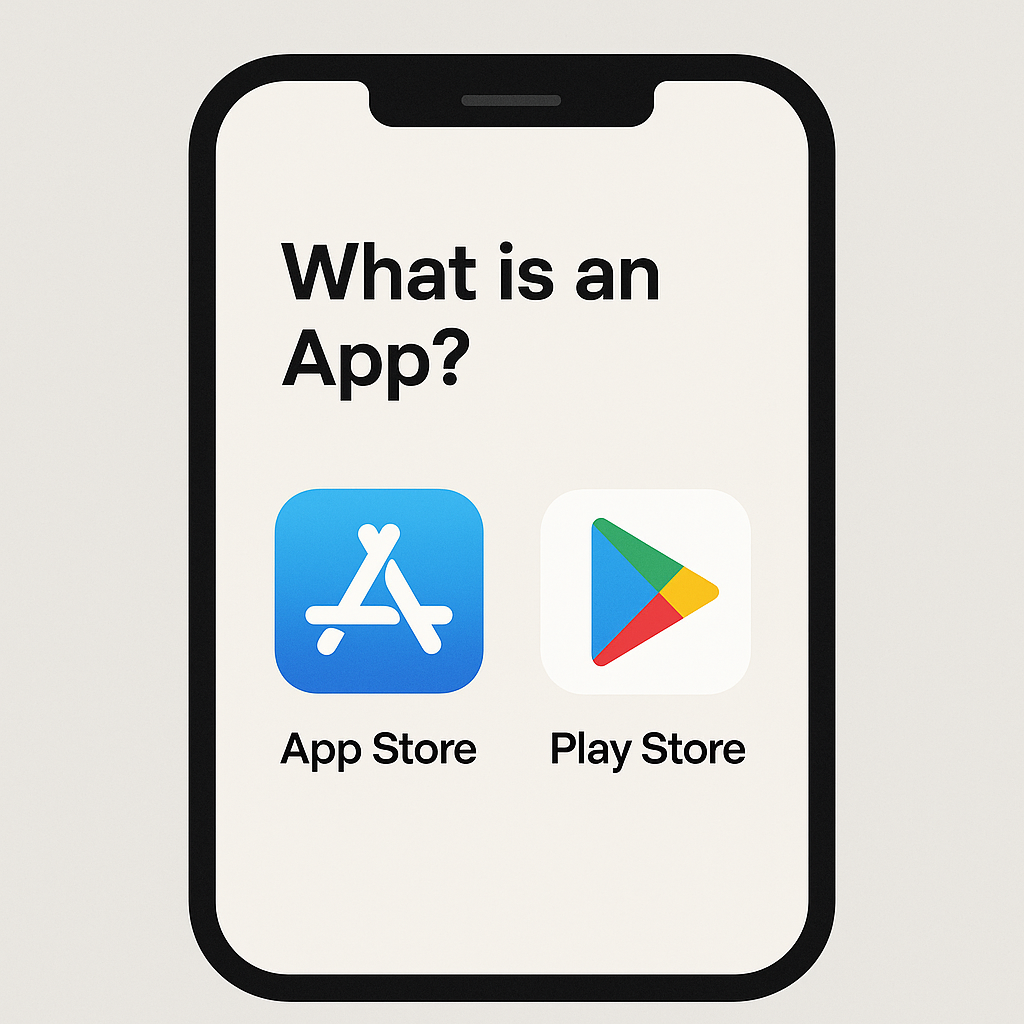
If you use a smartphone or tablet, you already use apps every day — you just might not call them that.
“App” is short for application — a small program designed to do a specific job.
For example:
Camera – takes photos.
Photos / Gallery – stores and organises your pictures.
Maps – shows you where you are and how to get somewhere.
Mail / Gmail / Outlook – lets you read and send email.
Every icon you tap on your phone’s screen is an app.
Your device came with many built-in apps, but you can add others — often free — from your phone’s App Store.
Where Do Apps Come From?
Each type of phone has its own official “shop” for apps:
iPhone or iPad: the App Store (run by Apple).
Android phones or tablets (Samsung, Google, etc.): the Google Play Store.
These stores are safe places to find and install software. Avoid installing apps from links in random messages or websites — those may not be trustworthy.
Why You Can Have More Than One Camera App
Most phones come with a built-in Camera app, but that’s just one way to take photos.
Your phone’s camera hardware — the lenses and sensors — can be used by any app that has permission to access it.
That means you can install other camera apps that:
use the same lenses but give you more manual control (aperture, ISO, shutter speed);
process images differently for a particular look, such as low light, HDR, or long exposure;
or offer special features such as RAW capture, focus stacking, or AI enhancement.
The original Camera app keeps things simple, but it doesn’t always make the most of what your camera hardware can do.
That’s where specialist camera apps — like Project Indigo — come in.
You can have several camera apps installed at once and choose whichever suits your purpose.
Think of them as different lenses in your camera bag, each good for a particular kind of shot.
How to Install an App on an iPhone or iPad
Find the App Store icon on your Home Screen.
Tap Search (magnifying glass at bottom-right).
Type the name of the app – e.g. Project Indigo.
Tap the Download button (a cloud ☁️ or “Get”).
If asked, confirm with your Apple ID password, Touch ID, or Face ID.
When the download finishes, a new icon will appear on your screen – tap it to open the app.
How to Install an App on an Android Phone or Tablet
Open the Play Store app.
Tap the Search bar at the top.
Type the app name – e.g. Project Indigo.
Tap Install.
When it finishes, tap Open, or find the icon on your Home Screen or in All Apps.
Keeping Apps Up to Date
Both Apple and Android can automatically update your apps so you always have the latest features and bug fixes.
In App Store → Account → Updates, turn on Automatic Updates.
In Play Store → Profile → Settings → Network preferences → Auto-update apps, choose Over Wi-Fi only.
Deleting an App
If you no longer need an app, simply:
iPhone: touch and hold the icon → Remove App → Delete App.
Android: touch and hold → drag to Uninstall or choose App Info → Uninstall.
Why We Talked About This in WGPC
At our recent meeting, the subject came up while discussing Project Indigo, the advanced camera app I recommend for night and low-light photography.
Many of you were interested but unsure how to “get” it.
The good news is — now you know! Just open your App Store or Play Store, search for Project Indigo, and install it like any other app.
It’s an easy way to improve your night photos — and a gentle step towards exploring what your phone camera can really do.