Stop Scrolling – Start Searching
Since I started writing this blog and the club emails, I’ve written quite a lot about iPhone apps in general—and the iPhone camera app in particular—only for Apple to update things and move them around again.
These “improvements” are designed to keep things fresh and add new features, but they also mean we have to relearn where everything is. That tends to be easy for those who’ve grown up with technology—they’re used to exploring and working things out. It’s less straightforward for those of us who prefer a more linear approach: step 1, then step 2, then step 3—following clear instructions rather than experimenting.
Recently, I’ve seen several club members flicking through page after page of home screen icons, trying (and failing) to find the app they want. In many cases, the app is still there—but it’s been updated, the icon has changed, and it’s no longer where they expect it to be.
The simplest solution is not to hunt for the app at all—but to search for it by name.
On your iPhone, just pull down on the home screen. This reveals the search screen, which shows:
Siri Suggestions – apps you use most frequently
A list of your recent searches
A search box where you can type the name of the app (for example, “Camera” or “Photos”)
In most cases, your key apps—Camera, Apple Photos, Google Photos—will appear immediately.
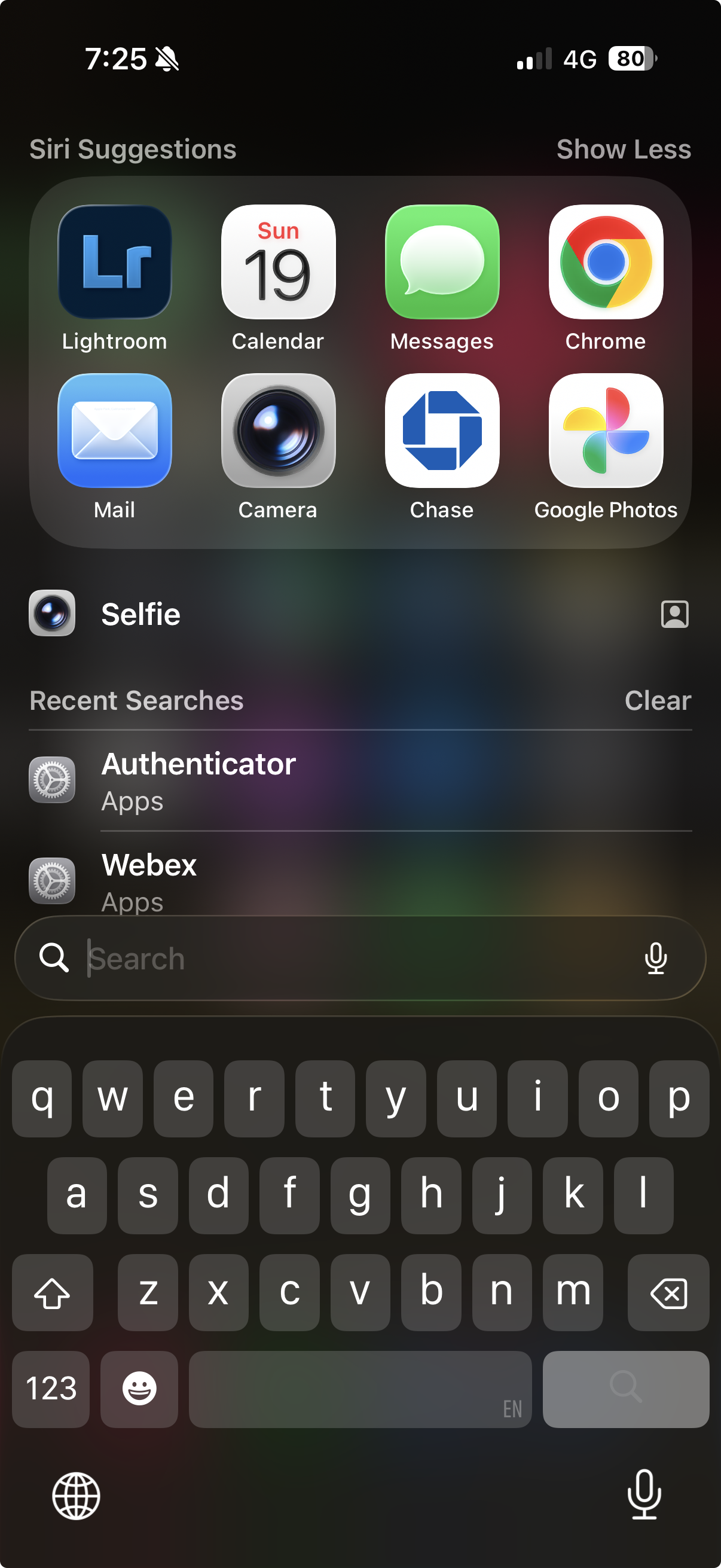
The iPhone Search Screen
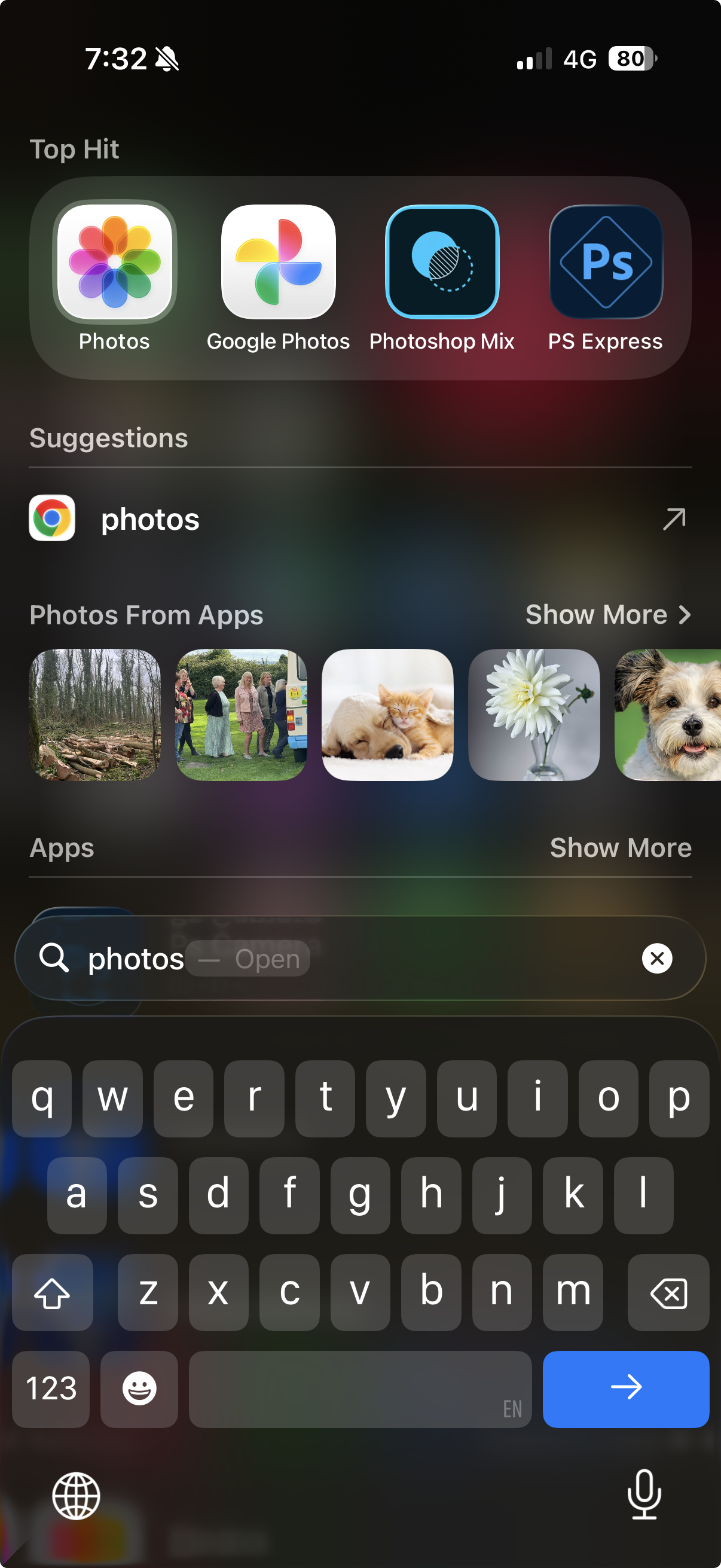
The result of searching for “Photos”
Once you start using this, you’ll realise we’ve only scratched the surface. This search function can find almost anything on your phone—apps, emails, files—and even search the internet.
For example, try typing something like “WGPC email” and you’ll quickly find any club emails you’ve kept.
As you become more confident, you’ll realise that this is really Siri, Apple’s built-in assistant, at work. You don’t even need to type—just say:
“Hey Siri, open Google Photos”
…and it will do it for you.
Once you get into the habit of searching rather than scrolling, you may find you rarely go looking for apps at all.